AWS Spend Clock: Cloud Costs by the Second for an Agriculture Company
An agriculture company we can't name runs a large share of its business on AWS. The monthly bill was a single number that finance saw weeks after the money was spent, and by then nobody could say which part of it had grown or why. We pulled the company's AWS spend data and built a dashboard that turns the bill into a clock: a running total that counts up every tenth of a second, with the services behind it laid out underneath.
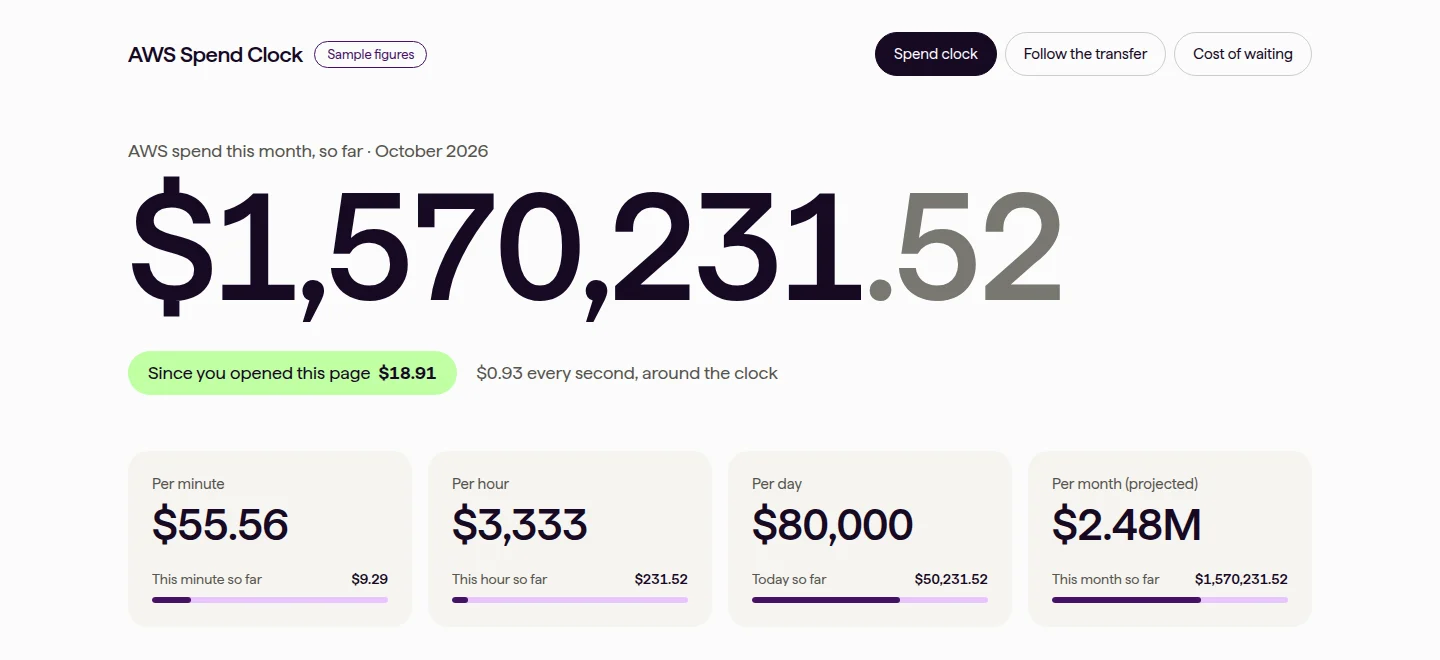
The screenshots on this page use sample figures. The client's own numbers stay with the client.
The problem
A cloud bill arrives once a month, as a total. The people who choose instance sizes, storage classes and where data gets copied rarely see it, and the people who see it can't tell which of those choices drove it. When the number goes up, the answer is a week of digging through Cost Explorer. Meanwhile the spend keeps running at the same rate.
What we built
The dashboard reads the company's AWS Cost and Usage Report and Cost Explorer data and works out a daily rate. Between billing updates the clock counts forward at that rate, so the month-to-date total moves on screen the way the meter does.
- The clock: spend this month so far, to the cent, plus a counter for how much has been spent since you opened the page.
- The rate tiles: what the account spends per minute, per hour, per day and per month, each with a bar showing how far into that minute, hour, day or month you are.
- Where the money goes: the top cost drivers by estimated spend per day, from EC2 and S3 to RDS, EKS and data transfer.
- Projected month-end and annual run rate: what the month will close at and what a year looks like at today's pace.
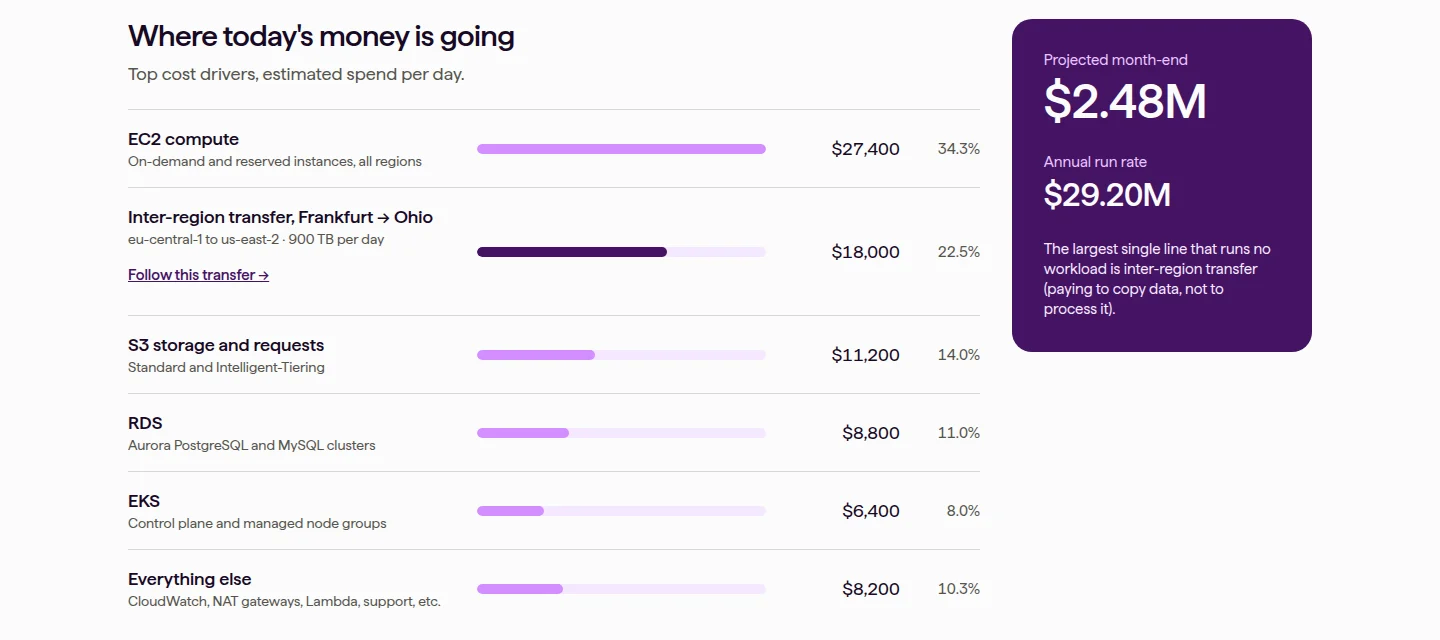
The line that runs no workload
Most lines on a cloud bill pay for work, like servers running jobs or databases answering queries. Inter-region data transfer is different. It pays to copy data from one AWS region to another, and if nobody remembers why that copy was set up, it may be paying for nothing. The dashboard marks the largest line of that kind and links to a view that follows it from the source region to the destination.
How we walk a team through it
We built the clock to be put on a screen in a meeting, and the conversation goes in this order.
- Start with the clock. Leave the page open while people sit down. By the time the meeting starts, the "since you opened this page" counter has a number on it, and everyone in the room has watched it climb. That number does more than a slide with the monthly total.
- Go to the per-minute tile. A monthly bill is hard to picture. What the company spends in a minute is easy to compare with things people know, like an hour of someone's time or a part on a tractor.
- Read the cost drivers top to bottom. For each line, ask who owns it and when someone last looked at whether it's still needed. The lines nobody can answer for are the ones to start with.
- Stop on the transfer line. Ask what the data is copied for and who reads it at the other end. If the answer is a report that runs once a week, it may not need to cross regions every day.
- End on the run rate. Every change the team agrees to comes off a number that otherwise repeats every year.
What's next
We're now building more reports on the same spend data that update in real time, as new billing data lands, so the people who launch and run resources can see what they cost while they run.
Have a workflow like this one?
Book a free AI planning call